A Cleaner Ultrawide Desk: Real-World Setup Ideas That Actually Declutter

By Ben Carter
A Cleaner Ultrawide Desk: Real-World Setup Ideas That Actually Declutter
If your desk looks like a charging station exploded, welcome. I’ve been there. The right ultrawide monitor setup can turn that chaos into a single, calm workstation. Here’s what actually works in real homes and small apartments—no showroom fluff—plus where I nudge folks to look when they want vetted gear on Consumer's Best.
Start with the desk and layout (your quiet foundation)
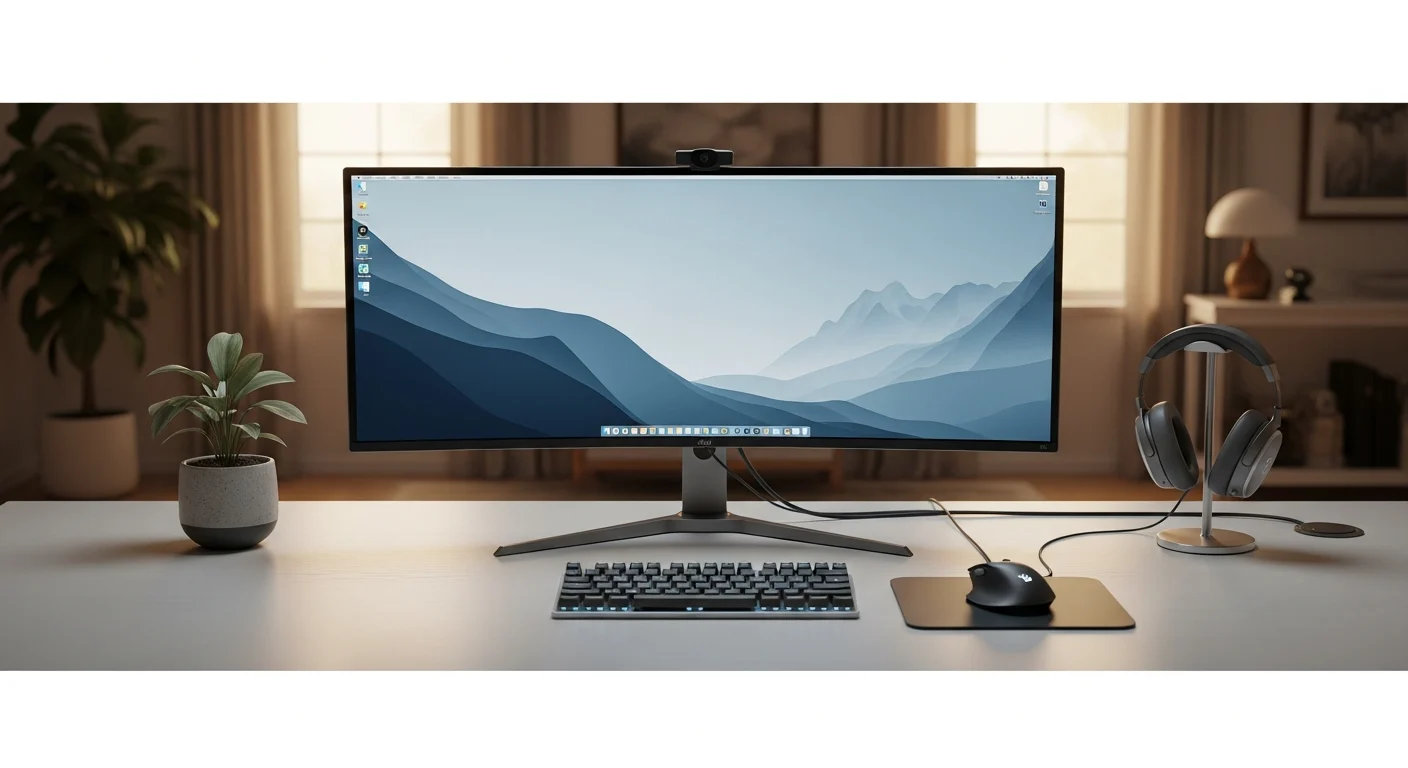
Here’s the thing: depth matters more than width. Aim for 28–30 inches deep so your eyes can sit about two feet back without the panel swallowing your face. For a 34-inch ultrawide, a 55–63 inch wide desk feels balanced; for a 49-inch, 63–72 inches gives you elbow room. If you’re going sit/stand, keep wall clearance for the arm’s sweep and center the screen with your chair, not the desk edge. A clean ultrawide monitor setup starts with that breathing room.
Mount the panel and win your surface back
Freeing desk space is half the battle. Use a VESA arm rated for your monitor’s actual weight (check it without the stand). Most 34-inch panels are 100x100; many 49-inchers too, but double-check. I like a grommet mount if your desk has the hole; it’s cleaner than a clamp and rock solid. A gas-spring arm with strong lateral torsion keeps wide panels from drooping. For especially heavy 49-inch models, a heavy-duty arm—or even a dual-post design—keeps things tidy and safe in any ultrawide monitor setup.
Tame the cables before they multiply
Believe it or not, cable mess isn’t about quantity—it’s about direction. Mount a power strip under the desk (screws or adhesive plate), run everything to that, then drop a single, sheathed line to the wall. Use an under-desk tray for adapters and a short Velcro strap every 8–10 inches along the run. Label both ends. Future-you will high-five present-you.
If your monitor offers USB-C with 65–90W power, lean into it. One cable to charge, display, and pass peripherals through a hub makes the whole desk feel intentional. Sleeve the monitor-arm cables together so they move as one when you reposition the screen.
Ergonomics that disappear into the background
Top of the screen about eye level (or a hair below), eyes roughly one third down the panel. Distance? Start at 24–32 inches and nudge until your neck stops thinking about it. Tilt the display just a few degrees so the center faces your nose. If your ultrawide is curved, align the arc to your seat, not the desk. It sounds fussy, but once it’s dialed, you’ll forget it—and that’s the point of a clean ultrawide monitor setup.
Peripherals that earn their space
Let’s keep it real: a tenkeyless or 75% keyboard clears inches of mouse room and looks cleaner. Low-profile boards reduce wrist strain without a chunky rest. For pointing, a compact ergonomic mouse or trackball keeps your shoulders relaxed. If you game or edit audio, slip a slim soundbar under the display or mount small speakers on the arm’s rear posts with brackets. One dongle or a tiny hub beats three random receivers every time.
Lighting that flatters the screen (and your eyes)
Add a bias light behind the monitor—neutral white, around 4000–6500K. It eases eye strain and makes contrast feel richer without cranking brightness. A desk lamp with a shade angled away from the panel helps for notes and sketching. Kill harsh overhead glare. Suddenly your setup looks “edited,” even if nothing else changed.
Micro-storage that vanishes on camera
Drawer on casters, slim felt tray, and a small catch-all under the desk for the things you touch daily—cables, pens, SSDs. Mount your dock or hub under the surface with 3M Dual Lock and give it a short, labeled pigtail to the laptop. If you love a monitor riser, keep it minimal so you don’t push the screen too high. If you’re curious which trays and mounts actually hold up, I’ve tested a bunch for Consumer's Best and I’m picky about wobble.
Two quick recipes that just work
Work-first minimal: 34-inch ultrawide on a single-arm mount, TKL keyboard, compact ergonomic mouse, under-desk power + tray, one USB-C cable to a 90W hub, bias light. It’s quiet, fast, and looks like you meant it. This ultrawide monitor setup is the one I build for friends who want fewer decisions.
Creator/gaming swing: 38–49-inch curved ultrawide, heavy-duty arm, soundbar tucked under the panel, low-profile keypad on the side for macros, wall-mounted peg rail for headphones and cables. Same clean cable drop, just more intention where it counts.
Buy in this order and you’ll feel the difference
First, a sturdy monitor arm that actually matches your panel’s weight. Second, an under-desk cable tray plus a mountable power strip to create that single-wall drop. Third, a USB-C hub or dock that can replace three cables with one. Fourth, the right-size keyboard and pointing device for your shoulders, not just your eyes. Last, the bias light and a slim desk mat to visually anchor it all. Each step cleans something you see or feel daily—no vanity buys here.
Wrap-up: keep it simple, then build on wins
Honestly, the cleanest desks aren’t perfect—they’re edited. Set the arm, sort the power, give yourself one-cable convenience, and stop there for a week. If you want vetted picks, I keep my shortlists updated on Consumer's Best—monitor arms, cable trays, docks—the stuff that quietly does the job. Start small, enjoy the calm, and let your setup grow because it earns its space, not because it’s trending.